
Tips to aid your search
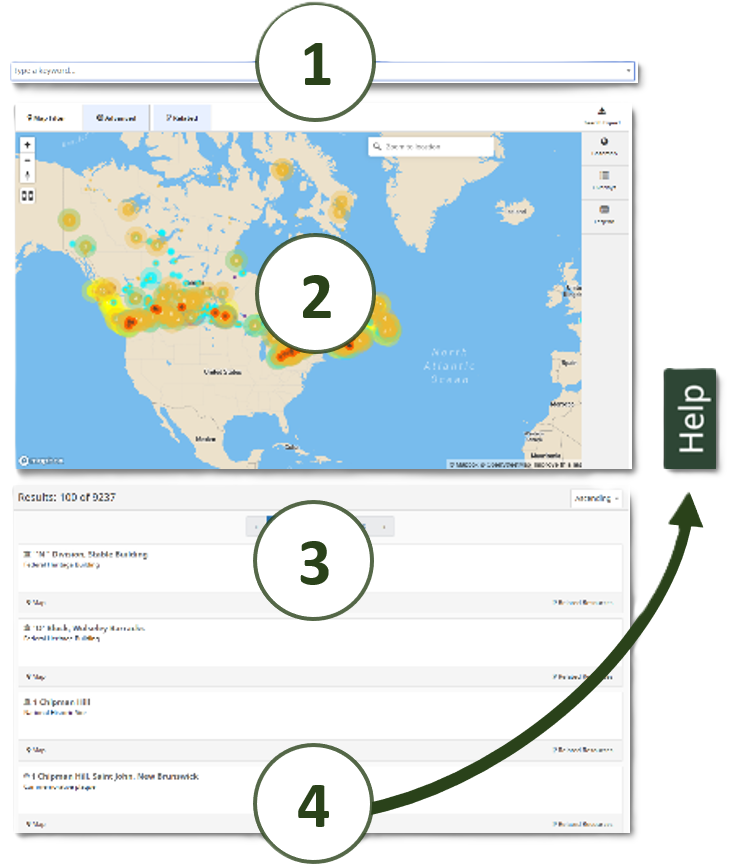
-
Search bar
Add a keyword to return records containing the keyword -
Map
Toggle map overlays to see all sites on the map
Consult the map legend to interpret the elements on the map
Use the map search bar to zoom to a location by name or addressSearch result list
Scroll down to the search result list to see all results, including unmapped records
Jump from a search result to its map location by clickingHelp
Click Help on the right side of the page for further guidance
To start a new search, return to the homepage or use the path on top of the page.
Help
How to search
The Directory of Federal Heritage Designations offers several ways to search. Take a moment to explore the options before you begin. Some key aspects of your search may have already been done for you!
The search tool has three sections: the search bar, the map and the search result list. For a visual orientation, select the ?, located near the top right of the page, at any time.
For simple searches, go to the Search the Directory homepage. From there, you can follow links to get records by designation type and other commonly requested criteria. It's a good place to start.
At any time, you can type a single keyword, a phrase, or multiple keywords into the search bar.
Type a keyword or phrase, then click Enter on your keyboard. You will see “Contains Term: [your keyword(s)]” in the search bar. A list of results will display just below the map.
If you followed a search by criteria from the Search homepage, you will see “Advanced Search” already in the search bar and results below. You can narrow this search by adding a keyword to the search bar.
Instead of inputting a phrase, it may be more fruitful to input multiple keywords. For example, searching for “Banff” and “Museum” will yield more results, including the Banff Park Museum, than searching for “Banff Museum.”
The search result list is located just below the map. It automatically updates when terms have been entered into the search bar.
For each result in the list you will see a card with the following elements:
- A symbol
- The title of the record
- The type of record
- Additional information
- A link to view the record on the map (if available)
- A link to view related records
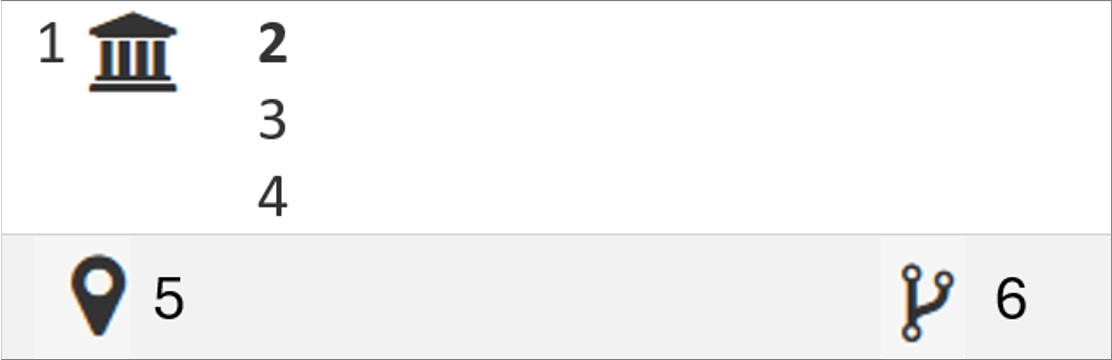
The symbol (1) indicates the kind of record.
 Historic place
 Commemorative plaque
 Historic person
 Historic event

Orange and black pins on the map correspond to items in the search result list.
If an item in the result list has a map pin, you will see Map in the bottom left of the result card.
However, many records are not pinned to a location. For example, historic person records are not associated with locations.
The result list presents 25 items at a time. Each page of 25 items is represented by a numbered tile located above the result list. Click through the tiles to get the next 25 results and corresponding map pins.
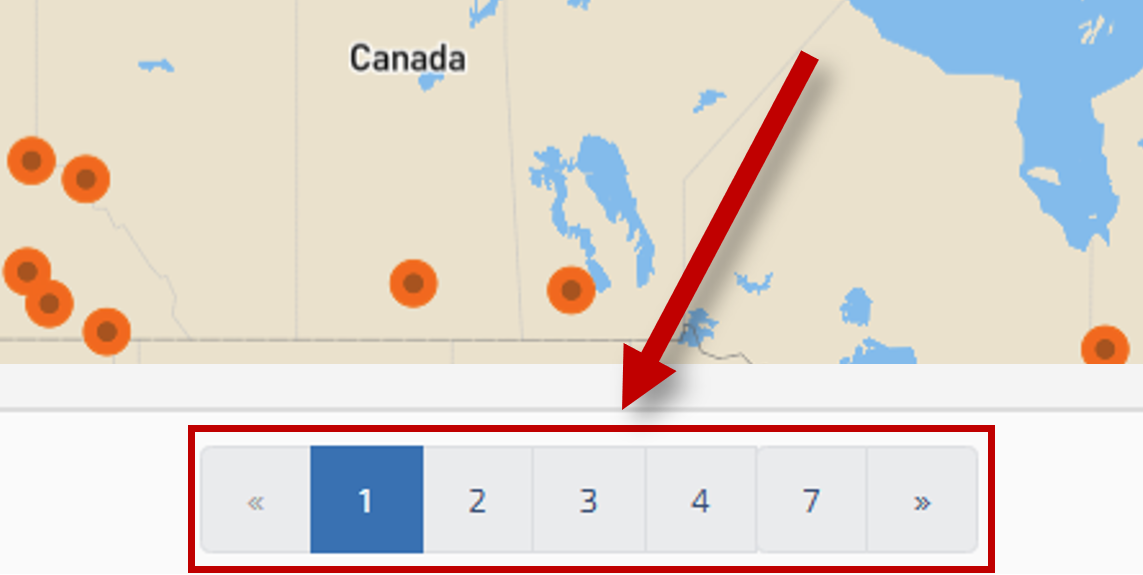
Search results are alphabetically ordered, with numbers sorted ahead of
alphabetical characters.
You can sort the records in ascending order A-Z or descending order
Z-A by selecting either option from the dropdown at the top right of the
result list.
With your cursor (hand tool), you can drag the map in any direction.
Other map tools allow you to change the map scale, zoom in or out, change basemaps, turn information layers on and off, and consult a legend.
Select Basemap to access toggling between street view and satellite view.
Overlays are complete sets of geographic data organized by category. Select Overlays to access toggling on/off of overlays.
For example, toggling on the National Historic Sites layer will display pin locations and site boundaries (polygons) for all National Historic Sites, overlaid upon any search results currently pinned on the map.
Toggling on multiple overlays can help to discover designations and plaques that are close to or overlapping one another.
Select Legend to access a guide to the coloured symbols on the map.
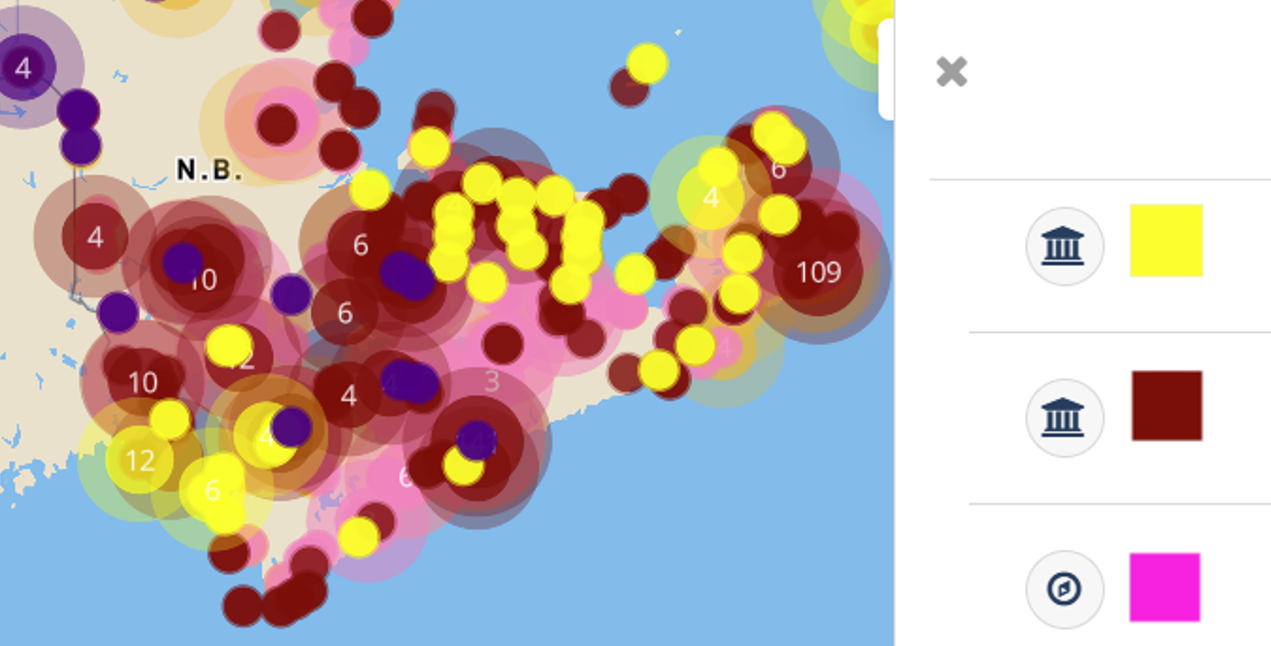
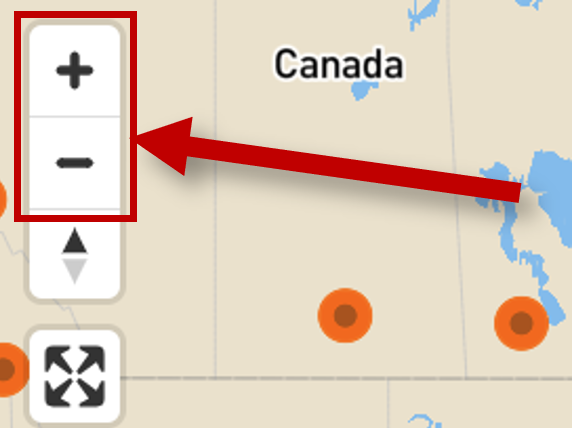
Zoom in or out using the plus and minus icons in the upper left corner of the map, or by using your mouse scroll.
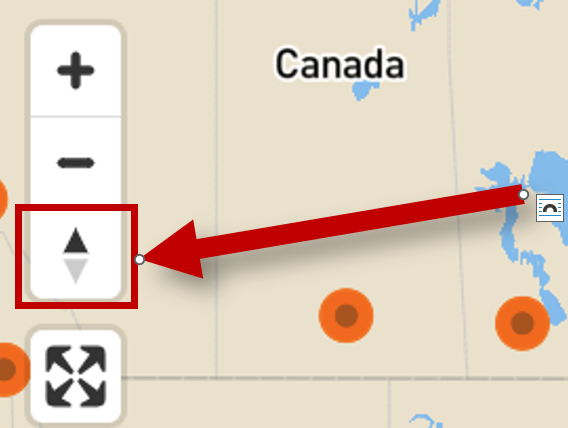
Adjust the map orientation by placing the cursor over the compass icon, then clicking and dragging. Click the icon again to return to the default display.
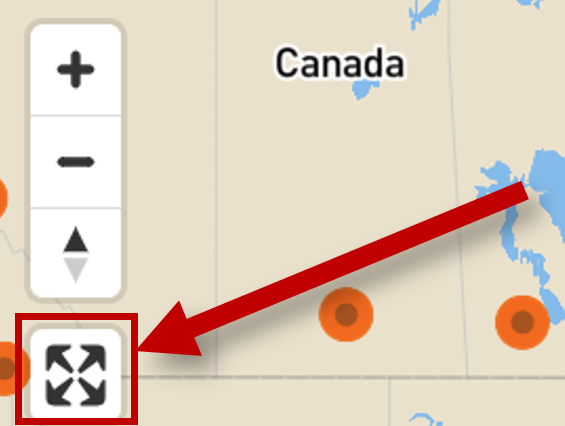
Select the expand icon to get a full-screen view of the map.
Related resources are records that have something in common, and that have been linked to make their relationship quickly discoverable.
For example, a historic place record may be linked to a person record. The precise nature of the relationship—for example, a building to its architect—is documented in the body of the records.
Graphical views of related resources are accessed through the search result list. For any card in the result list, click the Related Resources icon at the bottom left of the item. This will zoom you to a diagram consisting of records (nodes) linked to other records by relationships (lines), with your selected record at the centre. This view can help you to discover information connected to your initial search target.
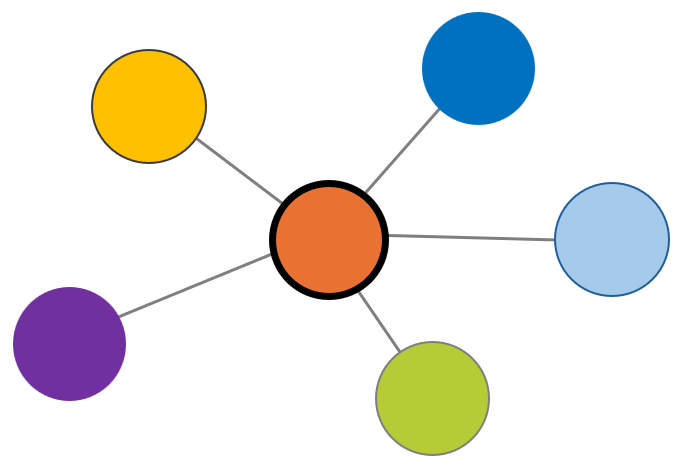
Enlarge or reduce the size of the diagram using your mouse scroll. Change the position of a node by clicking on it and dragging. Click Info to view the diagram as a list. Click Legend for a guide to the node colours. The colours represent the kind of record.
Click the node of your choice. The Info tab will open to display the node and its relations as a list. Select Open Record to go the record page.
With the Info tab open for a node of your choice, select Load More. This will display more relationships for the selected node, if more are available.
Warning! Some nodes, like Canada have many relationships, and selecting Load More can take a very long time to load. Avoid loading graph views for Canada, the provinces, territories and some major cities.
Related Resources are also listed at the foot of record pages as links.
For instance, if you visit the record for Signal Hill National Historic Site and scroll to the bottom, you will find the Related Resources section with links to connected persons, places, references and more.
To download your search results, select Search Export, which is located on the right, just below the search bar. You will be presented with options for formatting and a Download button.
Selecting csv (comma-separated values) delivers files suitable for straightforward data analysis.
When you click Download, compressed files are sent to your downloads folder. Decompress the files to open them with a tool such as Excel. The column headings are the data fields.
Note that exported results will be organized by kind of record. If your result list contained both Commemorative Plaque records and Historic Places records, you will find two CSV files labelled accordingly.
Selecting shapefile delivers files suitable for GIS-based analysis. When you click Download, the compressed files are sent to your downloads folder.
For shapefiles, choose a number of decimal places for latitude and longitude that makes sense for your project. Keep in mind that selecting the maximum number of decimal places does not increase the accuracy of the original data. Please read our Disclaimer on geographic data for more information.
Toggle this to the on position (green) to include hyperlinks in your export. The links go to the webpages for the records itemized in your result list.
If you wish to contact us for further help, please consult our Home page.
- Date modified: